Operations database / 1.2.0
User’s ManualRead every signal at a glance.
A visual guide to EXCORDER’s five screens—from your first sensor reading to Internet Radio, snapshots, screen recordings, Voice Decode, and BIO SCAN.
 Open full-size screen ↗
00 / OVERVIEW
Your sensor dashboard
OVERVIEW brings key information from the IMAGE, NAV, and AUDIO screens into one scrollable dashboard. Tap a section or use the tabs to open its full view.
- Rear ImagingSee the live rear camera, device vertical angle, azimuth, approximate center distance on supported LiDAR models, and an RGB-derived simulated spectrum.
- NavigationSee your map position, coordinates, heading, GPS altitude, local weather context, pressure, and relative altitude.
- AcousticMonitor relative microphone level in dBFS, the frequency spectrum, and the current digital boost.
Controls found throughout the app
Switch directly among OVERVIEW, IMAGE, NAV, AUDIO, and BIO.
The section is receiving live sensor data. NOT RECEIVING or a waiting message means data is unavailable or paused.
Capture the current EXCORDER screen and save the still image to Photos.
Start or stop a screen recording and save the resulting video to Photos.
 Open full-size screen ↗
01 / IMAGE
Imaging and range
Use the rear camera as a live sensor view. On supported iPhones, EXCORDER overlays an approximate LiDAR distance at the center of the image.
- Vertical angleThe scale on the left shows the device’s upward or downward tilt in degrees.
- AzimuthThe lower scale and AZ label show the direction the camera is facing, from 0° to 359°.
- Center rangeThe value inside the targeting brackets is the approximate distance to the center target. It appears only on supported LiDAR-equipped devices.
- Camera spectrumA 32-band visualization from 400–700 nm, simulated from the camera’s RGB values at 10 Hz.
Important: Center range is approximate, and the spectrum is an RGB-derived visualization—not a physical spectrometer reading.
 Open full-size screen ↗
02 / NAV
Position, field, and motion
NAV combines your position and environment with magnetic-field direction and motion analysis.
- Map and positionView your current map position, latitude, longitude, compass heading, and GPS altitude.
- Weather and pressureLocal temperature and humidity come from MET Norway. Atmospheric pressure comes from the device barometer when available.
- Relative altitudeTracks barometric change from a reference point. Tap RESET REL ALT to make the current reading the new zero point.
- Magnetic field scanShows current field strength, baseline, anomaly, peak, scan quality, and X/Y/Z readings. The arrow points toward a stronger field—not toward magnetic north.
- Reset scanTap RESET SCAN to establish a new magnetic baseline for the current position and surroundings.
- Acceleration / vibrationFollow the 100 Hz three-axis acceleration trace and a 0–50 Hz spectrum with peak frequency and amplitude.
Tip: Keep the iPhone steady while establishing a magnetic baseline. Cases, magnets, chargers, metal objects, and nearby electronics can change the reading.
 Open full-size screen ↗
03 / AUDIO
Sound and Voice Decode
AUDIO visualizes the microphone signal and can transcribe speech in six languages. Translation is available on supported iOS versions.
- Relative levelThe large dBFS value and bar show the live digital microphone level. It is not a calibrated sound-pressure level.
- Frequency spectrumThe bars show relative energy across 40 Hz–16 kHz.
- BoostAdjust the digital multiplier from 1× to 6× to inspect quieter signals. Boost changes the display sensitivity, not the physical microphone.
- Input languageChoose Japanese, English, Spanish, Korean, German, or French from INPUT.
- Transcription and translationSelect a translation target or OFF, then tap TRANSCRIBE. Tap STOP to finish and CLEAR to erase the displayed text.
Requirements: Microphone and speech-recognition access are required. Real-time translation requires iOS 18 or later and may require language resources to be downloaded by iOS.
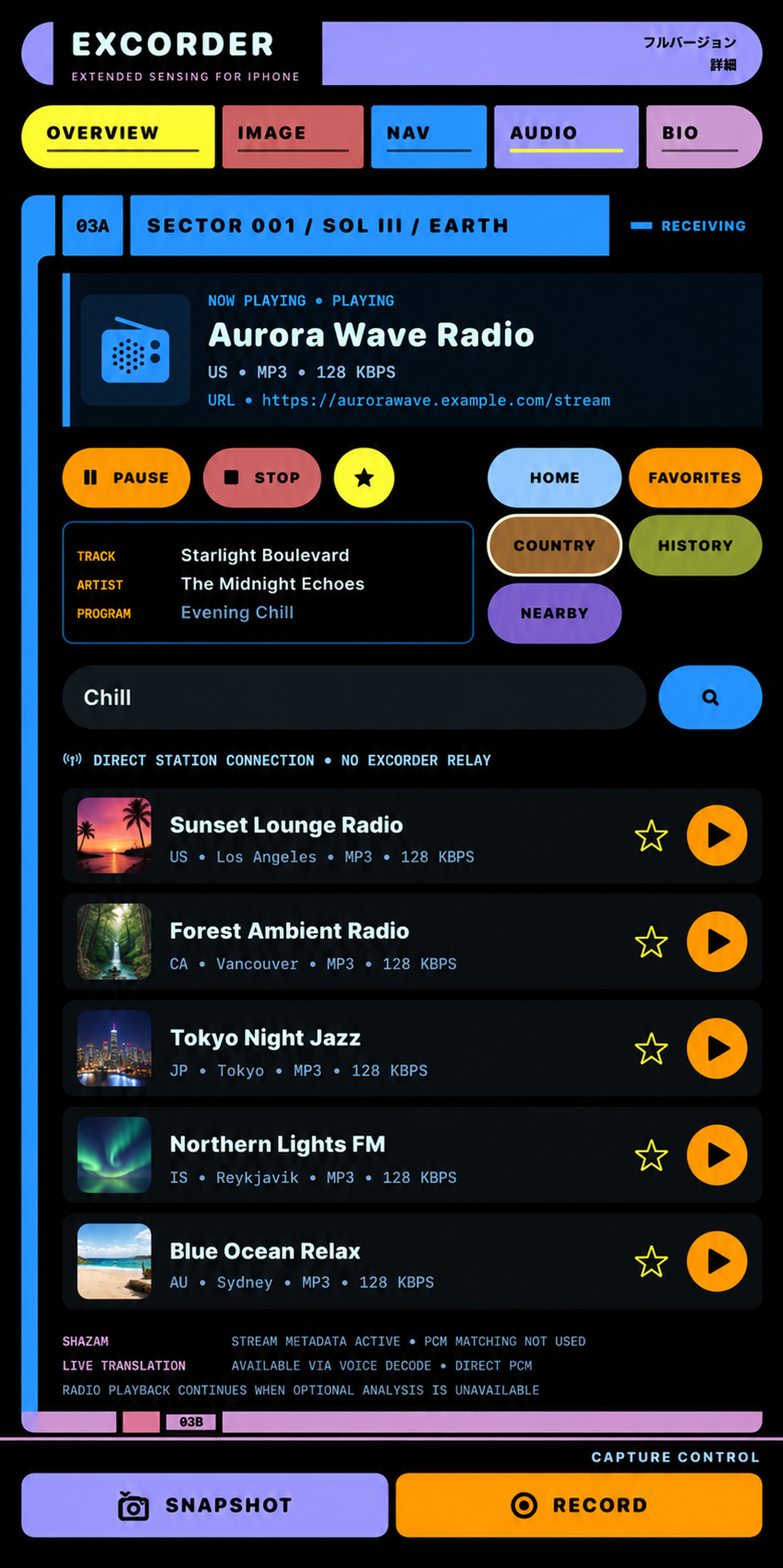 Open full-size radio screen ↗
03A / NEW IN VERSION 1.2.0
Internet Radio
Internet Radio is part of the AUDIO screen on iOS and Android. EXCORDER uses Radio Browser to find stations, then connects directly to the selected station stream.
The station names, track information, URLs, and artwork shown in this guide image are fictional examples. Available controls and information can vary by platform, device, OS, and station stream.
- Choose how to search.Use STATION for a station name, COUNTRY for a two-letter country code such as JP or US, or NEARBY for stations near your current location.
- Run the search.Enter your search text and use the search button. NEARBY requires location access.
- Select a station.Tap a result to connect. PLAY/PAUSE, STOP, and RETRY control the current station.
- Save or reopen it.Use the star button to add or remove a favorite. FAVORITES shows saved stations; HISTORY shows recently played stations.
- Try Voice Decode.After playback begins, use Voice Decode for live transcription or translation when the stream, device, OS, language, and required resources support it.
Radio troubleshooting
The station does not play
Check your internet connection, tap RETRY, and try another station. A station can be temporarily offline, region-restricted, or use an unsupported stream format.
NEARBY does not return stations
Allow location access for EXCORDER and enable Location Services. STATION and COUNTRY searches remain available without location access.
Track information is blank
Track, artist, and program fields appear only when the station sends that metadata. Blank fields do not necessarily indicate a playback problem.
Voice Decode is unavailable
Keep listening normally or try another station. Optional transcription and translation can be unavailable even while playback works.
Playback controls are limited during RECORD
Starting EXCORDER screen recording pauses the radio and prevents starting or resuming it. Stop recording, then resume playback. Background playback can be controlled from the system media controls.
Direct playback: EXCORDER does not relay, restream, download, record, or permanently store radio audio. Favorites and playback history save station information only.
 Open full-size screen ↗
04 / BIO SCAN
Watch for sensor changes
BIO SCAN watches several live channels at once and alerts you when a selected threshold is crossed.
- MagneticMonitors magnetic-field change against the adjustable THR value.
- Audio — Low / HighMonitors level changes in the 20–80 Hz and 14–20 kHz bands. Drag each threshold marker to tune sensitivity.
- BLEShows nearby Bluetooth Low Energy device count and RSSI change. The result depends on discoverable devices and Bluetooth access.
- PressureUses separate low and high limits around a baseline. Drag L and H to adjust the limits; tap RESET to use the current pressure as the new baseline.
- TrueDepthOn supported devices, FACE DETECT ON enables the front-camera view, face mesh, face detection, and 3D human-shape detection. Tap it to turn those functions off.
- Detection alertWhen a channel crosses its threshold, EXCORDER identifies the triggered channel and responds with an on-screen alert, sound, and vibration.
For entertainment purposes: Sensor changes do not confirm the presence of a living being. Face and 3D human-shape features require a TrueDepth-equipped device.
 Open full-size screen ↗
05 / PERMISSIONS
Manage access in iPhone Settings
If a sensor or save function is unavailable, open Settings → Apps → EXCORDER and confirm the permission for that feature. You only need to allow access for features you intend to use.
- LocationSet to While Using the App to show the map, coordinates, heading, GPS altitude, nearby weather information in NAV, and NEARBY station search in Internet Radio.
- PhotosAllow Add Photos Only so SNAPSHOT and RECORD can save images and screen recordings to Photos.
- BluetoothEnable this to scan nearby Bluetooth Low Energy devices in BIO SCAN.
- MicrophoneEnable this for the AUDIO level, frequency spectrum, Voice Decode, and BIO SCAN audio channels.
- Speech RecognitionEnable this to use live transcription in Voice Decode.
- Motion & FitnessEnable this for pressure, relative altitude, magnetic-field, device-angle, acceleration, and vibration displays.
- CameraEnable this for rear imaging and supported TrueDepth face and 3D human-shape features.
- Cellular DataEnable this when you want online services such as local weather information and Internet Radio to work without Wi-Fi. Radio playback uses network data.
If a permission is missing: Return to EXCORDER after enabling it. If live data does not resume, close and reopen the app. Menu names can vary slightly by iOS version and language.
SUPPORT / ONLINE
Need help with a reading or permission?
Check that the relevant permission is enabled in iPhone Settings and that your iPhone supports the sensor or OS feature. If the issue continues, include your iPhone model, iOS version, EXCORDER version, and what you were doing when you contact support.
Open EXCORDER Support →